Reprap: Don’t Throw Away Your Cracked/Weak Parts – Fix Them!

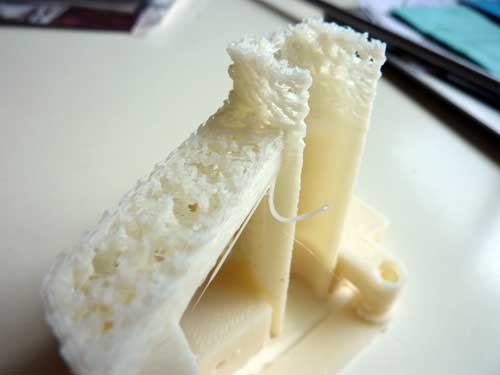
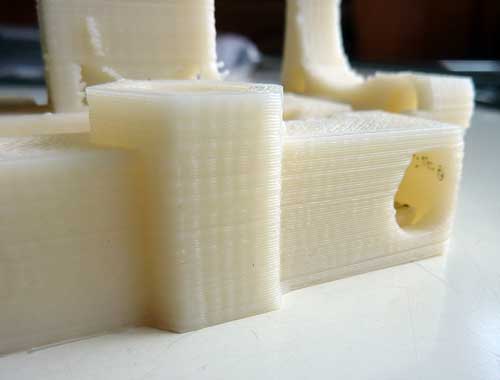
Sometimes, my layers don’t stick nicely, or I print a part that’s too thin, and the part cracks between layers when I try to use it:

There’s no need to throw them away and reprint them.  Just use a q-Tip soaked in acetone and paint it liberally.  Junk ABS bits dissolved in acetone works even better, but then you need to have a different bottle for each color. I keep it in a glass tea trea oil bottle from Trader Joe’s.  The milky white appearance of the liquid in the jar is due to the natural ABS that I dissolved in it. Don’t bother buying expensive ABS glue.  Make it yourself!

Sometimes, I’ll just paint the sections of a part that look weak, even if they haven’t yet broken, as a pre-emptive measure.  It makes your parts glossy, too, if you like that.
Did Termites Eat My Print?

I was printing out the x-end-motor for a new Reprap I’m designing yesterday. The bottom was printing beautifully:

I baby sat it for the first 2:15, and went to bed during the remaining 15 minutes of the print.  I woke up the next morning to find this:

At first, I thought my hot end had jammed again, so I cleaned it out.  After wasting the whole morning getting partway through a bunch of prints and wasting a ton of filament, I found the real culprit.  The grub screw that holds the small gear onto my extruder motor shaft had completely unscrewed itself!  The prints would start out OK, and then fail after the motor warmed up, and the heat softened the plastic of the gear, loosening its grip.  Grr! Rather than reprinting the part, I’m going to just fill the gaps with JB Weld.

Raspberry Pi Case

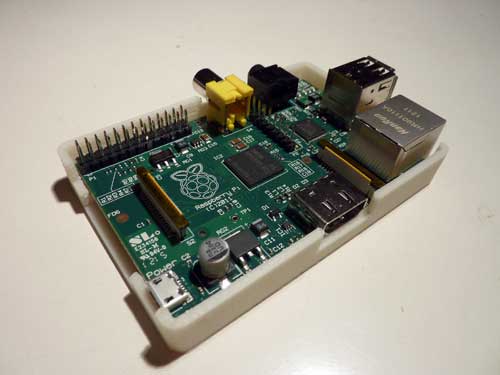
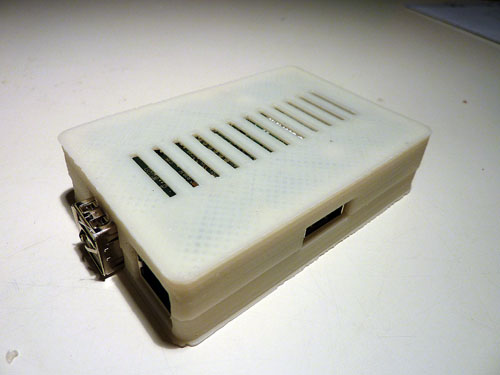
I was not fast enough to get an order in for a Raspberry Pi on launch day.  Fortunately, a kind friend of mine thought of me, and bought an extra one for me.  I received it yesterday, and printed this case:

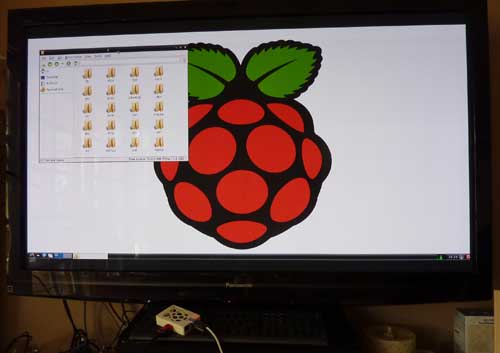
The case I made is a copy of HansH’s excellent Raspberry Pi case, modified with a slot that added on the top to accomodate access to the GPIO pins.  I uploaded it to Thingiverse:  Raspberry Pi Case with GPIO Access.  Here’s the first sucessful boot of my Raspberry Pi:

It looks so tiny sitting in front of my 52″ plasma.  I was pleasantly surprised to see it boot up at full 1080 resolution.  At first, I thought the HDMI port was bad, because it didn’t work with a cable that I know is good, but it turns out the Pi is just picky about HDMI cables.  I swapped in a different one, and it worked.  Now, I have a lot of reading to do… yet another gadget to play with…


Marlin for Printrboard Updated

I just synced my Marlin branch for Printrboard with the latest code from ErikZalm’s branch. I noticed that there were a lot of changes in the planner, temperature control, etc.  Hopefully, it will be an improvement, rather than breaking anything.  Please report here or on github if you find any anolmalies with the new code.

Download Marlin for Printrboard here: https://github.com/lincomatic/Marlin

AVR CAN Bus Project: LeafCAN v1.2 Released

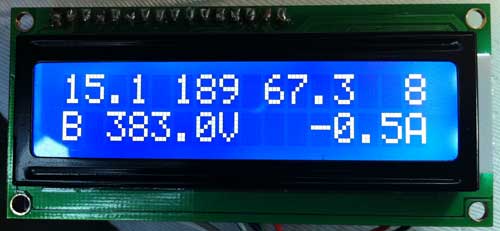
Another tweak today, I added instantaneous battery power consumption in KWh to the second line of the display. In order to make room, I had to do away with the V and A characters after the voltage and current draw. Here is the new display:

The top line, from left to right, contains Battery Pack Remaining KWh, SOC (“GIDs”), SOC % (GIDs/281*100), and Remaining Fuel Bars.
The bottom line now contains Battery Pack Voltage, Battery Pack Current Draw (Amps), and Battery Power Consumption (Pack Voltage * Pack Amps).

For users who prefer the old display, I added:

#define SHOW_KWH
#define SHOW_KW

If you comment out both lines, the display will be the same as v1.0, but with the smoothing that was added in v1.1.

As usual can download the latest release from github: https://github.com/lincomatic/LeafCAN/downloads.

Previous: AVR CAN Bus Project: LeafCAN v1.1 Released

AVR CAN Bus Project: LeafCAN v1.1 Released

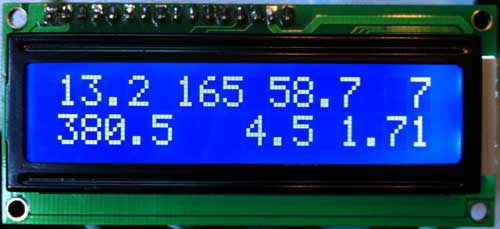
I made some minor modifications to LeafCAN firmware today. First, I added display of remaining KWh in the battery pack, based on Phil Sadow’s formula of GIDs * 80 = Wh. Also, the display was a bit blurry when the values were updating rapidly, so I slowed down the refresh rate of the LCD to 250ms.

In order to make space for the KWh remaining value, I had to take out the % character in the SOC % display. Here is the new display:

The top line, from left to right, contains Battery Pack Remaining KWh, SOC (“GIDs”), SOC % (GIDs/281*100), and Remaining Fuel Bars.
The bottom line is unchanged, and contains Battery Pack Voltage, Battery Pack Current Draw (Amps).

You can download the latest release from github: https://github.com/lincomatic/LeafCAN/downloads. Note that I have added LeafCAN.hex, a precompiled file, for those who don’t have a working Arduino setup for compiling the code.

Previous: AVR CAN Bus Project: Step 4 – LeafCAN: Nissan Leaf SOC Meter
Next: AVR CAN Bus Project: LeafCAN v1.2 Released